> For the complete documentation index, see [llms.txt](https://documentation.hak5.org/packet-squirrel-mark-ii/llms.txt). Markdown versions of documentation pages are available by appending `.md` to page URLs; this page is available as [Markdown](https://documentation.hak5.org/packet-squirrel-mark-ii/getting-started/packet-squirrel-basics.md).
# Packet Squirrel Basics
Packets go in. Packets go out. What happens in between is up to you.
## Ports and features
### Status LED
Status LED
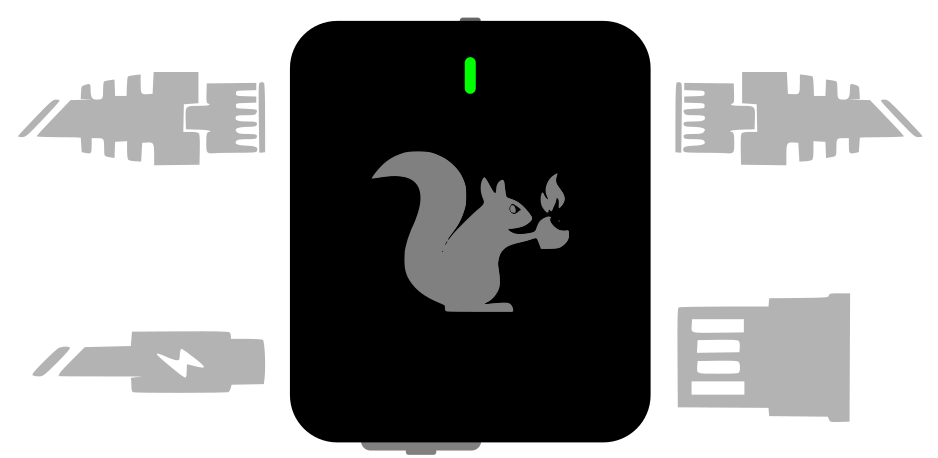
On the front of the Packet Squirrel is the status LED.
This multi-color LED reflects the system status, and can be customized by payloads.
LED status modes:
* Blinking green\
The Packet Squirrel is booting. The first time the Packet Squirrel boots will take several minutes while it configures the internal storage and generates unique SSH keys. \
Future power-ups of the Packet Squirrel will take significantly less time.
* Blinking magenta\
The Packet Squirrel is in first-time setup mode; connect to to start!
* Blinking blue\
The Packet Squirrel is in arming mode; connect to or ssh to 172.16.32.1 to configure your device.
* Cycling red/blue/green\
The Packet Squirrel detected a USB storage device, but could not mount it. [Check that it has a supported ](#usb-storage)filesystem!
* Flashing red and blue\
The Packet Squirrel could not find a payload for this switch position. Set your Packet Squirrel to Arming Mode and make sure a payload is present!
* Other colors\
Payloads can configure the LED to many other colors and patters, check your payloads for more information!
### Power
USB-C Power port
The Packet Squirrel is powered via USB-C.
This port is located on the lower left-hand side of the device.
This may be connected to any standard USB power source, such as with a USB A-to-C cable or a USB C-to-C cable connected to a power adapter, computer USB port, or USB power bank.
The USB-C power port on the Packet Squirrel is for *power only*. You can not connect USB devices (such as flash drives or network adapters) to this port.
### Target Port
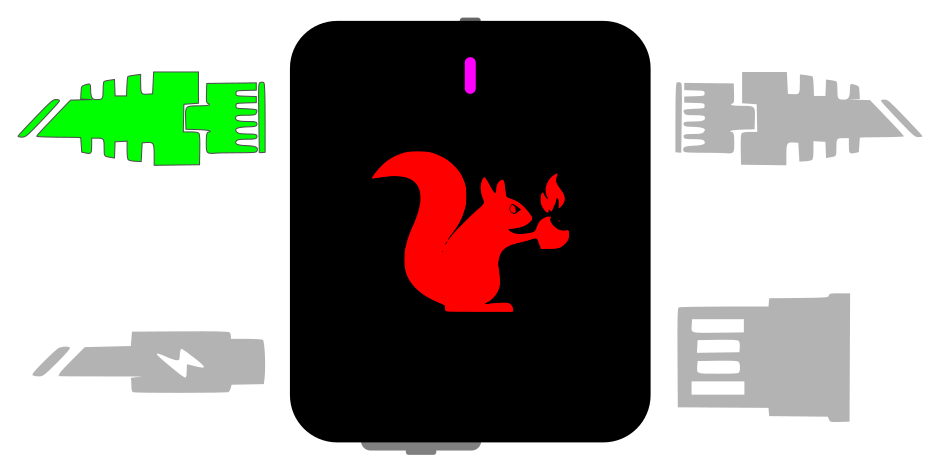
Target Ethernet port
The Target Ethernet port is located on the top left-hand side of the device.
Connect target devices to this port.
Depending on the payload network mode, devices on the Target port will be connected via NAT, transparent layer 2 bridging, or isolated from the network for inspection.
In NAT mode, devices on this port will be given an address in the 172.16.32.X range. In bridging modes, devices on the Target port will obtain IP addresses directly from the network that the Packet Squirrel is connected to.
### Network Port
Network Ethernet port
Located on the upper right-hand side of the device, the Network Ethernet port is used to connect the Packet Squirrel itself and any Target devices.
Depending on the payload network mode, devices on the Target port will be connected via NAT, transparent layer 2 bridging, or isolated from the network for inspection.
In Arming & Configuration, NAT, or Bridged modes, the Packet Squirrel will attempt to obtain an IP address via DHCP from the network connected to this port.
### USB storage
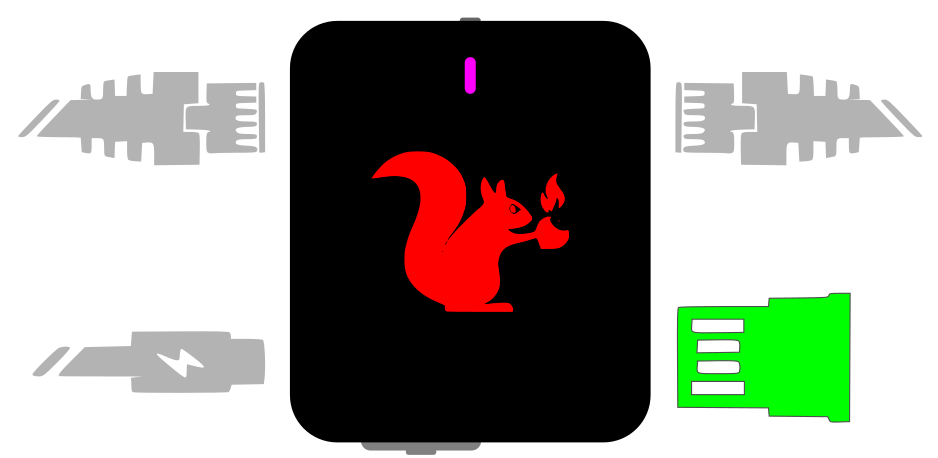
USB-A port
Located on the bottom right-hand side of the Packet Squirrel is a standard USB-2.0-A port.
This port is used to attach USB storage devices (such as thumb drives) to expand the storage capabilities of the Packet Squirrel.
USB storage can be formatted with ext4, exfat, fat32, or NTFS filesystems.
USB storage can also support optional full-disk encryption via advanced payloads.
While not officially supported, the USB-A port can also be used for other USB devices, depending on driver availability and advanced payloads.
### Pushbutton
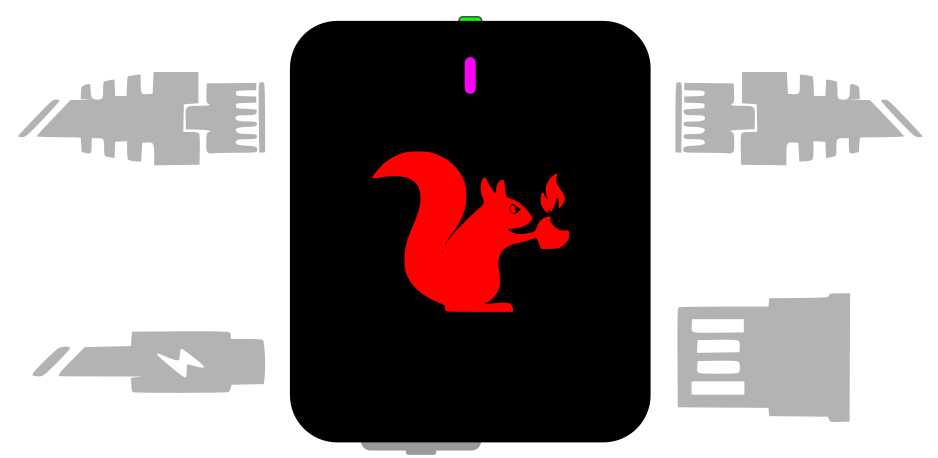
Momentary pushbutton
On the top of the device is a momentary push button.
This button is used to reboot the Packet Squirrel, perform a factory reset, or enter the firmware upgrade modes.
It can also be used by payloads to wait for user input and take an action.
### Mode switch
Mode switch
On the bottom of the device is a sliding switch.
This switch is used to select the Packet Squirrel mode.
## Packet Squirrel modes
The Packet Squirrel has four modes, determined by the position of the mode switch (the sliding switch on the bottom of the device).
When the Packet Squirrel is powered on, it will boot into the selected mode.
Packet Squirrel mode switch
## Arming & Configuration mode
When booted with the switch in the fourth position (the right-most or 'A' position), the Packet Squirrel will boot into *Arming & Configuration Mode*.
Arming & Configuration Mode enables the Packet Squirrel web UI and SSH access. When in Arming Mode, the Packet Squirrel will use NAT to provide an address in the 172.16.32.X range to devices on the Target port, and will provide network access via the connection on the Network port.
Use Arming & Configuration Mode to configure your device, payloads, Cloud C² settings, and to retrieve any stored data.
## Payload modes
In positions 1, 2, or 3, the Packet Squirrel will automatically run the selected payloads.
Payloads are scripts written in standard Linux/Unix shell script (bash) or Python.
Payloads can leverage multiple built-in tools for configuring the network modes, capturing and manipulating network data, and more.
Payloads can be configured or replaced while in Arming & Configuration Mode.