> For the complete documentation index, see [llms.txt](https://documentation.hak5.org/packet-squirrel-mark-ii/llms.txt). Markdown versions of documentation pages are available by appending `.md` to page URLs; this page is available as [Markdown](https://documentation.hak5.org/packet-squirrel-mark-ii/getting-started/web-ui.md).

# Web UI

The Packet Squirrel Mark II web UI is enabled during Arming & Configuration mode. It is not enabled by default in payload modes, but a payload can enable it via the [UI\_START](/packet-squirrel-mark-ii/payload-development/duckyscript-for-packet-squirrel/ui_start.md) command.

This web UI shows the current status and configuration and allows for editing of payloads directly on the device.

## Dashboard

<figure><img src="/files/ZSNoZXTiES2IsWX7Dr96" alt=""><figcaption><p>Packet Squirrel Mark II Web UI</p></figcaption></figure>

The dashboard is the landing page of the Packet Squirrel UI.  On it you will find the currently installed payloads, the current switch position, and a graphical representation of the Packet Squirrel hardware.

{% hint style="info" %}
On loading the dashboard, the Packet Squirrel may alert that an Internet connection is not available.  To connect your Packet Squirrel to the Internet, plug the Network Ethernet port into a network with DHCP and Internet access.

Internet access is only required for connecting to a Cloud C² server, downloading packages, and similar actions.  It is not required for basic setup, local editing of payloads, or other configuration.
{% endhint %}

## Web terminal

<figure><img src="/files/kMUCTQoNnk8AFJhW0dqp" alt=""><figcaption><p>Web terminal launcher</p></figcaption></figure>

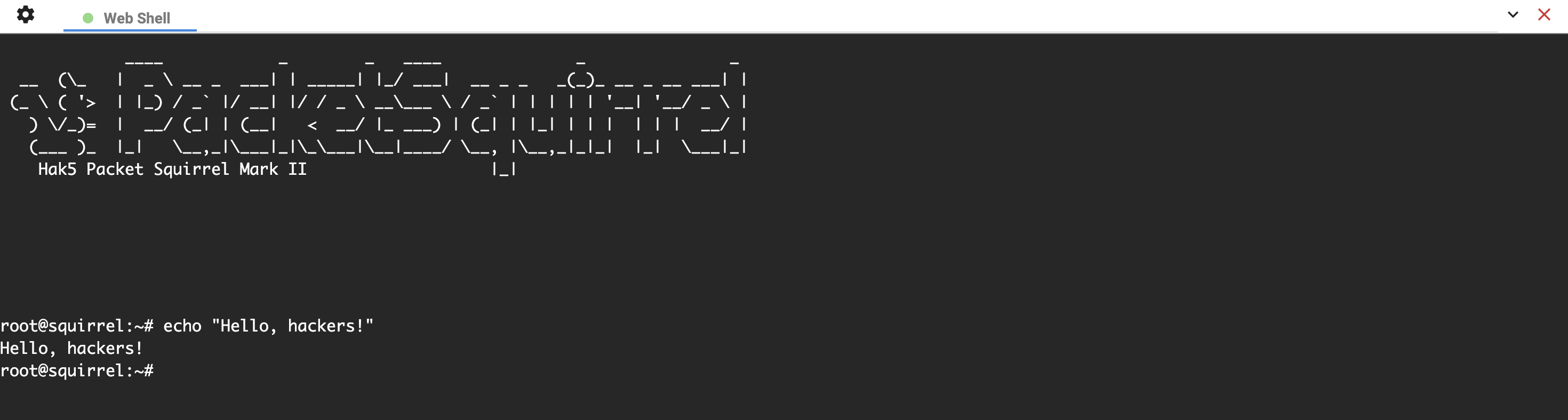
In the upper right of the Packet Squirrel UI is the web terminal. &#x20;

This launches an in-browser terminal session to the Packet Squirrel.  This is equivalent to a `ssh` connection, and gives full access to the low-level interface to the device.

<figure><img src="/files/JwnA6kyxQl934bSHEeBQ" alt=""><figcaption><p>Web terminal session</p></figcaption></figure>

## Payload editors

The Packet Squirrel supports 3 payload slots, selectable by the payload switch; these can be downloaded and uploaded or edited live via the web UI, edited on the device via `ssh`, or copied to the device via `scp` or other file copy tools.

The Packet Squirrel web UI contains a basic editing environment:

<figure><img src="/files/Ledqr8QbN5HDUOZFF5DT" alt=""><figcaption><p>Editing a payload via the web UI</p></figcaption></figure>

Within the payload editor you can live-edit the payloads, download the payload to your computer for local editing, and upload local files to a payload slot.

{% hint style="info" %}
Looking for more information about creating payloads?  Check out the [Payload Development](/packet-squirrel-mark-ii/payload-development/payload-development-basics.md) guide!
{% endhint %}

## Settings

The settings page of the web UI is used to change the password and timezone, as well as changing the hostname used when the device requests an address over DHCP.

Additionally, the settings page is used to upload a Cloud C² configuration file, view connected USB devices, and set the UI theme.

<figure><img src="/files/RrS0swswUAKtYMfhdQZw" alt=""><figcaption><p>Packet Squirrel settings page</p></figcaption></figure>

<figure><img src="/files/PWtCfJrGdNTo1Q3yfq0u" alt=""><figcaption><p>Packet Squirrel settings page showing USB and storage devices</p></figcaption></figure>

The network category under the settings page will show the current network interface states and any addresses assigned to them:

<figure><img src="/files/7sJzQCyZblLlVCb1X3TG" alt=""><figcaption><p>Packet Squirrel network settings page</p></figcaption></figure>


---

# Agent Instructions
This documentation is published with GitBook. GitBook is the documentation platform designed so that both humans and AI agents can read, navigate, and reason over technical content effectively. Learn more at gitbook.com.

## Querying This Documentation
If you need additional information that is not directly available in this page, you can query the documentation dynamically by asking a question.

Perform an HTTP GET request on the current page URL with the `ask` query parameter:

```
GET https://documentation.hak5.org/packet-squirrel-mark-ii/getting-started/web-ui.md?ask=<question>
```

The question should be specific, self-contained, and written in natural language.
The response will contain a direct answer to the question and relevant excerpts and sources from the documentation.

Use this mechanism when the answer is not explicitly present in the current page, you need clarification or additional context, or you want to retrieve related documentation sections.