> For the complete documentation index, see [llms.txt](https://documentation.hak5.org/packet-squirrel-mark-ii/llms.txt). Markdown versions of documentation pages are available by appending `.md` to page URLs; this page is available as [Markdown](https://documentation.hak5.org/packet-squirrel-mark-ii/setup/connecting-the-packet-squirrel.md).
# Connecting the Packet Squirrel
## Connecting the Packet Squirrel
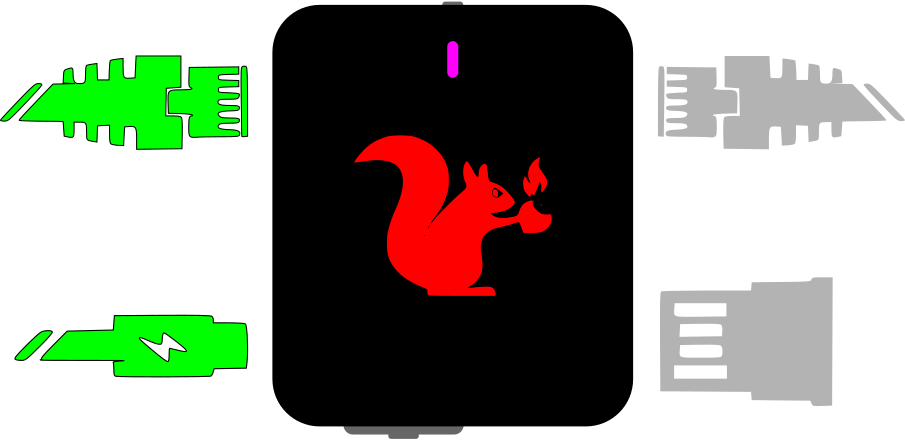
First, connect your computer to the Packet Squirrel by plugging one end of a standard Ethernet cable (not included) into your computer's Ethernet port (or a USB Ethernet adapter), and the other end into the Packet Squirrel's "Target" Ethernet port (next to the USB-C power port).
Second, provide power to the Packet Squirrel by connecting to a standard USB-C power source (not included). This can be a USB-A to USB-C cable connected to a power adapter or computer, a USB-C to USB-C cable connected to a power adapter or computer, or any other standard USB-C connection.
How to connect your Packet Squirrel for the first time
## First boot
The first time the Packet Squirrel is booted, it will take several minutes to initialize the on-board storage and generate the unique SSH host keys. Once the flash and keys are initialized, future boot times will be significantly reduced.
While the Packet Squirrel is booting and initializing, the LED will flash green. Once the device has finished booting, the LED will flash magenta (or pink) and is ready to be configured.
## Networking
In arming or setup mode, the Packet Squirrel will provide DHCP to devices on the Target port. Once it is done booting, it will assign an IP address in the range of 172.16.32.X to your computer.
If your computer has not received an IP address over DHCP by the time the Packet Squirrel has finished booting, it may be necessary to refresh the interface; typically this can be done in the network settings panel.
{% hint style="info" %}
Connection problems?
The Packet Squirrel will assign your computer an IP in the 172.16.32.X range.
If you are having trouble reaching the Packet Squirrel, make sure that:
* You can ping the Packet Squirrel. In a terminal, run `ping 172.16.32.1`. If the `ping` command is successful:
* Try using a browser such as Chrome, Firefox, or Safari. Specifically, there have been reports that the Brave browser can cause problems.
* Disable extensions in your browser. Some extensions, such as those that block Javascript or change the URL, can prevent the Packet Squirrel UI from loading properly.
* Use an Incognito Tab
* If you are unable to ping the Packet Squirrel:
* Make sure that your computer is plugged into the Target Ethernet port. The Target Ethernet port is the one on the side with the USB-C power port.
* Unplug the Ethernet for 15-30 seconds then plug it in again. Some systems will stop asking for a DHCP address if none is available, and may have timed out while the Packet Squirrel booted.
{% endhint %}
## Setup
Your new Packet Squirrel is now ready to be configured! Navigate to with a browser on your computer to start the setup.