> For the complete documentation index, see [llms.txt](https://documentation.hak5.org/payload-studio/llms.txt). Markdown versions of documentation pages are available by appending `.md` to page URLs; this page is available as [Markdown](https://documentation.hak5.org/payload-studio/customization/compiler-settings.md).

# Compiler Settings

{% hint style="danger" %}
Some options are limited to <mark style="color:red;">PayloadStudio Pro</mark>. These will be indicated with the <img src="/files/tlP9AaWgm2GpuqsRgbag" alt="Pro" data-size="line">label
{% endhint %}

{% hint style="success" %}
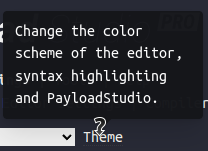
Even though each setting is named to be self explanatory - every setting in PayloadStudio contains an description / explanation tool-tip available **on hover**
{% endhint %}

<figure><img src="/files/hrrJybppLWknfd9tEav3" alt=""><figcaption><p>Setting description tool-tip</p></figcaption></figure>

## DUCKY\_LANG

### `Persist language file`

With this option disabled, the language file will reset to default US every time PayloadStudio loads

### `Display DUCKY_LANG above editor`

Displays the current language file name above the main editor. Also provides shortcut to Settings - Compiler Settings.

### Changing Languages

1. Navigate to **Settings** > **Compiler Settings**

2. Under the **DUCKY\_LANG** heading click the **Language** button<br>

   <figure><img src="/files/hfbMAwFKEnpsoQtLsXW7" alt=""><figcaption><p>Settings > Compiler Settings > DUCKY_LANG > Language button</p></figcaption></figure>

3. Select, import or upload a new language file

<figure><img src="/files/bWdGGL6cxluAzgvZgy4W" alt=""><figcaption><p>Change Language Menu</p></figcaption></figure>

### Reset Language

1. Navigate to **Settings** > **Compiler Settings**
2. Under the **DUCKY\_LANG** heading from the **Language Editor** select the <img src="/files/H2BJDwNUA8jwLLAp9ioZ" alt="" data-size="original"> button from the editor's toolbar

<figure><img src="/files/jQnt66DxPPzqsFfRPsE9" alt=""><figcaption><p>Reset language to Default US</p></figcaption></figure>

### Download Current Language

Click the download ![Download](/files/ae7vKmyfqqJy9mXroMmp) button from the editor's toolbar

<figure><img src="/files/LYjch9k4uAO0NmxvBFN9" alt=""><figcaption><p>Download Language File</p></figcaption></figure>

### Editing Language Directly<img src="/files/tlP9AaWgm2GpuqsRgbag" alt="Pro" data-size="line">

Editing the language directly from within PayloadStudio Pro is as simple as making the changes in the dedicated Language Editor

{% hint style="info" %}
Click the ![Toggle Expand](/files/sqUP4fqSixxFwVNM9oKX) button to make the language editor larger&#x20;
{% endhint %}

<figure><img src="/files/uAHNOP8c7vBSlCO1FhPc" alt=""><figcaption><p>Pending Language File Changes</p></figcaption></figure>

After saving your changes, metadata will appear above the editor

<figure><img src="/files/q3p31nMu3WVhNkoCuOVe" alt=""><figcaption><p>Language File Metadata</p></figcaption></figure>

{% hint style="warning" %}
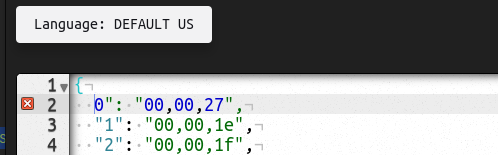
Languages must be valid JSON to import, upload or save. Key value pairs with valid hex as the value. See [example](https://github.com/hak5/usbrubberducky-payloads/blob/master/languages/us.json) on Github
{% endhint %}

<figure><img src="/files/m7RyOArZ41wi52iUN6iM" alt=""><figcaption><p>Language file errors</p></figcaption></figure>

## Compiler Options <img src="/files/tlP9AaWgm2GpuqsRgbag" alt="Pro" data-size="line">

### `Warn on lines modified by DEFINE`

Shows lines modified by DEFINE as a warning to help ensure the result of build is as expected. Unchecking this will still annotate as info, but **will not remind you** as part of output in console on compile.

<figure><img src="/files/QhkAmIHv1kUts7e4qaR4" alt=""><figcaption><p>Annotation</p></figcaption></figure>

<figure><img src="/files/qrwIqeVvpBKpDbSFkSjD" alt=""><figcaption><p>Compiler output</p></figcaption></figure>

### `Clear console on Compile`

With this option enabled, the contents of the Console will be cleared automatically when you click Generate Payload. *Scroll back / history will be kept.*

### `Delete console history on compile`

With this option enabled, the contents and history of the Console will be deleted automatically when you click Generate Payload.

### `Show detailed payload memory usage`

Shows a more specific breakdown of byte usage in your payload to help you optimize and plan around any scenario

<figure><img src="/files/GmJVLwU6WGYGWEa2QMoJ" alt=""><figcaption><p>Detailed Payload Memory Usage Compiler Output</p></figcaption></figure>

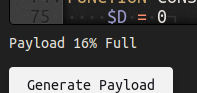
### `Show remaining payload memory below editor`

Shows the remaining available payload memory below the main editor. <mark style="color:yellow;">**Requires**</mark><mark style="color:yellow;">**&#x20;**</mark><mark style="color:yellow;">**`Live Error Checking`**</mark><mark style="color:yellow;">**&#x20;**</mark><mark style="color:yellow;">**to be enabled.**</mark>

<figure><img src="/files/vIxHz5LWOiXdbkc8kslp" alt=""><figcaption><p>Remaining payload memory indicator pinned to bottom left of the editor</p></figcaption></figure>

### `Show info, error and warning counts above editor`

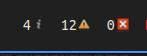
Shows DuckyScript compiler info, error and warning counts above editor. Provides shortcuts to step through each in the payload.

<figure><img src="/files/ylnE5iuEKgudkXCGl78r" alt=""><figcaption><p>info, error and warning count pinned to top right of the editor</p></figcaption></figure>

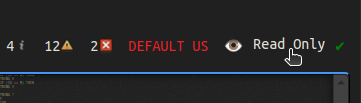
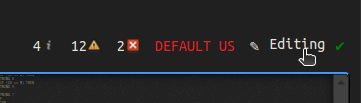
### `Set editor to read only on compile`

With this option enabled, clicking the Generate Payload button will set the editor to Read only to prevent any further accidental changes (temporarily) ensuring the inject.bin will match the editor.

{% hint style="info" %}
Toggle editor from Read Only to Editing by clicking the label or icon pinned to the top right above the editor
{% endhint %}

<figure><img src="/files/5v1KtfCdYh1FmPfkosNS" alt=""><figcaption><p>Read Only Mode</p></figcaption></figure>

<figure><img src="/files/DfulsSfaosXK5DoBlSSo" alt=""><figcaption><p>Editing Mode</p></figcaption></figure>

### `Download inject.bin on successful compile`

With this option enabled, after successfully compiling a payload, PayloadStudio will automatically prompt you to download/save the inject.bin

### `Download payload source on successful compile`

With this option enabled, after successfully compiling a payload, PayloadStudio will automatically prompt you to download/save the DuckyScript payload used to compile the inject.bin

## Syntax / Version Control <img src="/files/tlP9AaWgm2GpuqsRgbag" alt="Pro" data-size="line">

### `Lock compiler version to DuckyScript Version 1.0`

This will lock DuckyScript compiler compatibility to version 1.0 syntax and behavior only.<br>
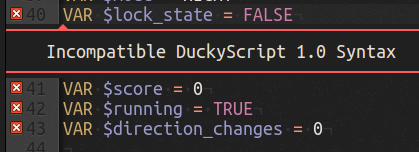
<figure><img src="/files/aM6ecT5sBeLYwKsiiNdG" alt=""><figcaption><p>Incompatible DuckyScript 1.0 Syntax Errror annotation</p></figcaption></figure>

### `Treat STRING blocks as HEREDOC`

Checking this box will prevent the compiler from stripping indentation tabs from text inside a STRING block.\
\
This is provided as a fallback for formatting ascii art - because why not?

### `Allow DEPRECATED DuckyScript 1.0 Fallback Syntax`

**Recommended Setting: Disabled/Unchecked (**<mark style="color:red;">**DEPRECATED SYNTAX**</mark>**)** \
\
Allow deprecated original DuckyScript 1.0 Syntax/Behavior: lines that don't match any other syntax will encode the first word or first character. \
\
\&#xNAN;*This is provided only as a compatibility option for old payloads that took advantage of this side affect.*

<figure><img src="/files/lCECBnJKr23SZYLuccq2" alt=""><figcaption><p>Error thrown with option disabled (<mark style="color:green;">RECOMMENDED</mark>)</p></figcaption></figure>

<figure><img src="/files/StyfHRBRuGjgwfenzvg6" alt=""><figcaption><p>Warning thrown with option disabled (<mark style="color:red;">NOT RECOMMENDED</mark>)</p></figcaption></figure>

### `Allow implicit modifiers in key combos`

**Recommended Setting: Disabled/Unchecked (**<mark style="color:red;">**DEPRECATED SYNTAX**</mark>**)** \
\
Allow deprecated original DuckyScript 1.0 Syntax/Behavior: \
\
\&#xNAN;*Example: 'CONTROL S' is implicitly CONTROL **SHIFT** s because S **is** SHIFT + s*

<figure><img src="/files/LLCAOFVPkzaFUlIDiijW" alt=""><figcaption><p>Error thrown with option disabled (<mark style="color:green;">RECOMMENDED</mark>)</p></figcaption></figure>

<figure><img src="/files/xPyzVuJ66hivgvv5Frv9" alt=""><figcaption><p>Warning thrown with option disabled (<mark style="color:red;">NOT RECOMMENDED</mark>)</p></figcaption></figure>

### Compiler Settings > DuckyScript Optimizations <img src="/files/tlP9AaWgm2GpuqsRgbag" alt="" data-size="line">

### `Optimize DELAY encoding`

Forces compiler to use the most efficient DELAY encoding. Giving you more space in your payload to write other code.&#x20;

{% hint style="warning" %}
This **MAY** lock compatibility to Advanced DuckyScript 3.0.
{% endhint %}

### `Always use new DELAY encoding`

Forces compiler to always use DuckyScript 3.0 DELAY encoding.&#x20;

{% hint style="danger" %}
This **WILL** lock compatability to Advanced DuckyScript 3.0.
{% endhint %}

### `Optimize repeated injections`<mark style="color:yellow;">`*`</mark>

<mark style="color:yellow;">\*Coming soon - we appreciate your patience.</mark> This feature attempts to hyper-optimize STRING injection across the entire payload

## DuckyScript Debugging <img src="/files/tlP9AaWgm2GpuqsRgbag" alt="" data-size="line">

For use with Ducky Debugger - With this option enabled, clicking the gutter for a specific line will toggle (create/destroy) a debugging breakpoint for that line

### `Enable DuckyScript 3.0 breakpoints and debugger`

<mark style="color:blue;">For use with Ducky Debugger</mark> - With this option enabled, clicking the gutter for a specific line will toggle (create/destroy) a debugging breakpoint for that line<br>

<figure><img src="/files/SAg7zBkqx1MgRgMgcHTo" alt=""><figcaption><p>Breakpoint on line 300</p></figcaption></figure>

### `Debug builds compile breakpoints`

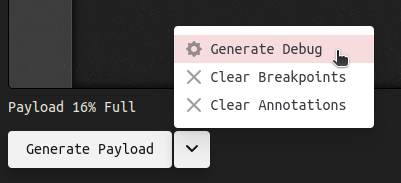
Checking this will include all IDE Breakpoints when generating a debug build.<br>

<figure><img src="/files/yxAMjVPGuBnpyJqf3YYY" alt=""><figcaption><p>Generate Debug inject.bin button</p></figcaption></figure>

### `Debug builds convert modifiers and keycombos to STRINGS`

Checking this will compile all modifiers and key-combos into PayloadStudio safe STRING commands.&#x20;

{% hint style="info" %}
*This is useful while debugging directly inside the PayloadStudio Console as it prevents the payload from leaving the browser.*
{% endhint %}

### `Set editor to read only on debug compile`

With this option enabled, clicking the Generate Debug button will set the main editor to Read only to prevent any further accidental changes (temporarily) ensuring the inject.bin will match the editor.

### `Annotate Payload Memory Usage By Line`

**Recommended Setting: Disabled/Unchecked (**<mark style="color:orange;">**affects performance**</mark>**)** \
Shows number of bytes it takes to execute each line as an INFO annotation in the main editor.

<figure><img src="/files/Hb1dIKwc4o0f16t33VO1" alt=""><figcaption><p>Payload Memory usage annotation</p></figcaption></figure>

### `Annotate Expensive Operations`

With this option enabled, expensive operations will be annotated in the main editor. \ <mark style="color:yellow;">**Requires:**</mark><mark style="color:yellow;">**&#x20;**</mark><mark style="color:yellow;">**`Annotate Payload Usage By Line`**</mark><mark style="color:yellow;">**&#x20;**</mark><mark style="color:yellow;">**to be checked/enabled**</mark>

<figure><img src="/files/0dduOUkfX5tsmCsocmNd" alt=""><figcaption><p>Expensive Operation annotation</p></figcaption></figure>

### `Annotate Compiler Parser Details`

**Recommended Setting: Disabled/Unchecked (**<mark style="color:orange;">**affects performance**</mark>**)** \
With this option enabled, compiler parser info will be annotated per line in the main editor

<figure><img src="/files/UIORapmMfb53vphTGsFS" alt=""><figcaption><p>Compiler Parser annotation</p></figcaption></figure>

### `Annotate Pre-Processor Preview`

**Recommended Setting: Disabled/Unchecked (**<mark style="color:orange;">**affects performance**</mark>**)**\
With this option enabled, each line will be annotated with how the compiler sees it after preprocessing, formatting, etc

<figure><img src="/files/nwwqgAsQJZ5dZ4z1XscS" alt=""><figcaption><p>Preprocessor preview annotation</p></figcaption></figure>

### `Annotate Compiled Bytecode for Injections`

**Recommended Setting: Disabled/Unchecked (**<mark style="color:orange;">**affects performance**</mark>**)**\
With this option enabled, keystroke injection will show the byte-code generated annotated per line.

<figure><img src="/files/4SlpRkfkk9a9a8RnS0zx" alt=""><figcaption><p>Compiled Bytecode for Injections annotation</p></figcaption></figure>

### `DuckyScript Compiler Debug Logging`

**Recommended Setting: Disabled/Unchecked (affects performance)**\ <mark style="color:red;">For use in bug reporting - may cause unstable performance.</mark> \
Enable this to enable DuckyScript Compiler Debug logging in the browser console.


---

# Agent Instructions
This documentation is published with GitBook. GitBook is the documentation platform designed so that both humans and AI agents can read, navigate, and reason over technical content effectively. Learn more at gitbook.com.

## Querying This Documentation
If you need additional information that is not directly available in this page, you can query the documentation dynamically by asking a question.

Perform an HTTP GET request on the current page URL with the `ask` query parameter, and the optional `goal` query parameter:

```
GET https://documentation.hak5.org/payload-studio/customization/compiler-settings.md?ask=<question>&goal=<endgoal>
```

`ask` is the immediate question: it should be specific, self-contained, and written in natural language.
`goal` is optional and describes the broader end goal you are ultimately trying to accomplish on behalf of the user. GitBook uses it to tailor the answer towards what is most useful for that goal.

The response will contain a direct answer to the question and relevant excerpts and sources from the documentation.

Use this mechanism when the answer is not explicitly present in the current page, you need clarification or additional context, or you want to retrieve related documentation sections.